

Start with what you need, not what looks shiny
Look, mngani, if you want an all-in-one that actually fits your day — from Teams calls to Netflix chill — start by saying what you’ll do most. Need a tidy desk for admin and video calls? Want light photo editing? Or do you need a powerhouse for video timelines? While you shop, it’s smart to glance at current all in one computer deals so you know the real price points out there; CES 2024 made it obvious manufacturers are pushing compact, integrated desktops for hybrid work setups, so those deals matter. Pick the scenario first and specs follow.
Core features that actually affect daily use
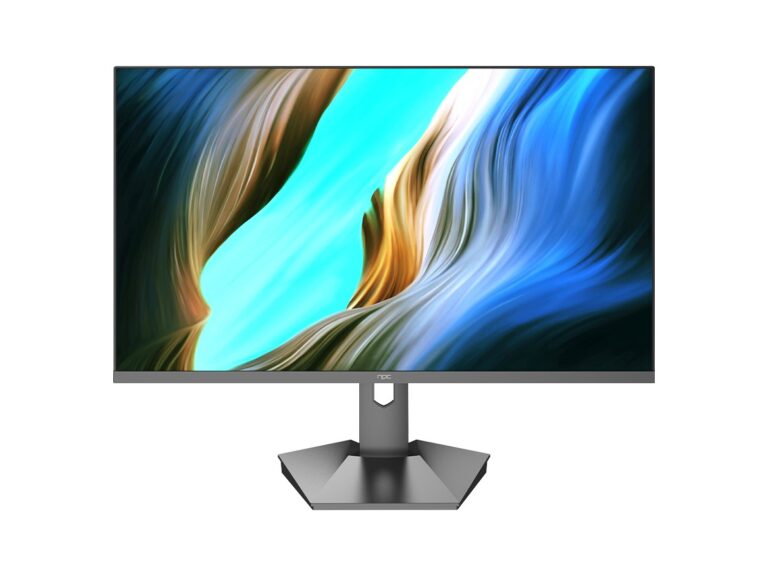
Screen: Go 24–27″ for balance; 4K only if you edit or want sharp text at large sizes. Processor: Intel Core i5/Ryzen 5 or better for smooth multitasking. RAM: 8GB minimum; 16GB for editing or many browser tabs. Storage: SSD for speed — 500GB is a reasonable baseline. Webcam/mic: check sample reviews; a good built-in camera saves time. Ports: at least one USB-C and two USB-A, plus HDMI out if you want a second screen. Serviceability: confirm whether RAM and storage are upgradeable. Warranty and support: local parts and service will save you grief.
Match specs to real use cases
Basic home office: Intel i3 or Ryzen 3, 8GB RAM, 256–512GB SSD. Family media hub: 24″ 1080p, decent speakers, HDMI-in if you want console play. Creative light work: 16GB RAM, Ryzen 5/Intel i5, calibrated display. Small-business receptionist or kiosk: choose models with easy remote management and reliable webcam/mic. Gaming-lite: discreet GPU or integrated Ryzen 7 Vega; don’t expect desktop-class GPUs in slim all-in-ones. The choice must reflect your day; overbuying wastes cash, underbuying wastes time.
Common mistakes people make
Buying by brand prestige only. Ignoring serviceability — many AIOs lock RAM and storage under glued panels. Trusting thin bezels over thermal design; slimmer doesn’t always cool well. Forgetting to test the webcam and mic before purchase. Assuming built-in speakers are good enough for podcasts or serious video chats. Check each of these before payment; the small checks stop big headaches.
Alternatives and trade-offs
Mini PC + monitor: better upgrade path, same footprint, often cheaper to repair. Laptop with dock: portable and flexible, but permanent desk setup will be bulkier. Traditional tower + monitor: best for upgradeability and performance but eats desk space. All-in-one wins for neat desks and fewer cables. Pick the trade-off you can live with: neatness and simplicity versus long-term upgrade options.
Brand guidance — what each type gives you
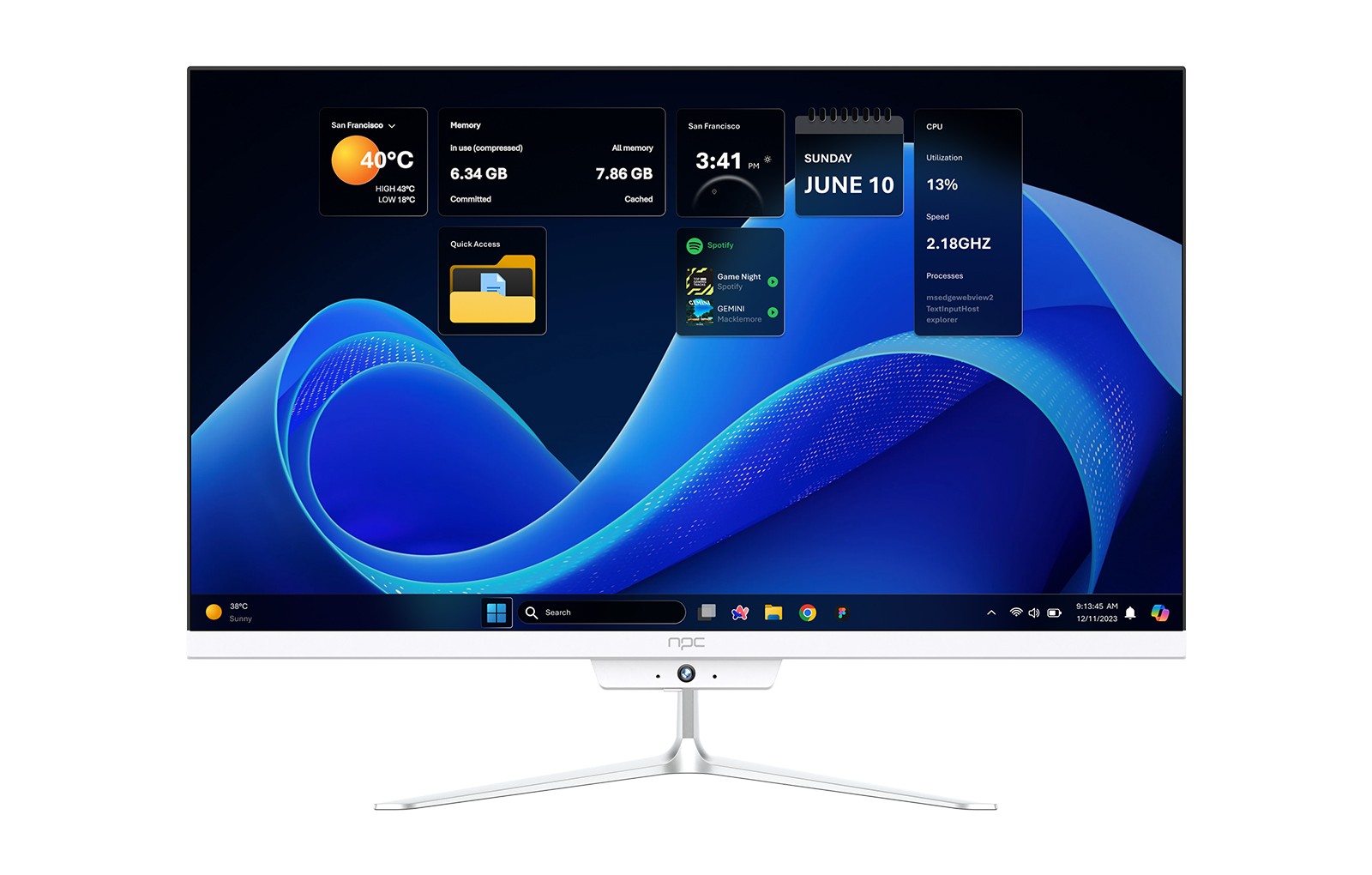
Apple iMac: great display, macOS ecosystem, solid resale; limited user upgrades and higher price. Dell/HP business AIOs: serviceable designs, enterprise support options, Windows compatibility. Lenovo IdeaCentre: often the best value, decent thermal design in mid-range models. Mini-PC makers: flexible if paired with a good monitor. Think: does the brand offer local support and spare parts? That matters more than fancy box art.
Setup, maintenance, and quick wins
Place the unit where airflow isn’t blocked. Use a wired Ethernet if you do large uploads. Backup to cloud or an external drive; internal SSDs can fail. Keep drivers updated from the maker’s support page, not random downloads. If the model isn’t user-upgradable, buy the RAM/SSD you need now. A cheap USB-C dock fixes many port shortages without gutting the warranty.
Wrap-up for the person buying today
Decide what you spend most of your time doing, match it to screen, CPU, RAM, and serviceability, then check real-world pricing and support. People who choose with that checklist end up happy, not stuck. If you like sensible builds that balance price and support, npc fits that practical corner for all-in-one systems without the loud hype.