

Opening: the problem, simply
Smart ceiling fans look sleek. They promise mood lighting, app control, voice commands. But then—connectivity drops. Remote response lags. You wait. Frustration grows. This guide cuts to the core problems and gives clear steps. Think of it like maintaining a pond fountain in a smart yard: pumps, signals, and power must all cooperate. Fix one thing, and the whole experience improves.
First check: reproduce and record
Before you tinker, reproduce the fault. Is the lag constant, or only during evenings? Happens with the app, the IR/ RF remote, or voice assistant? Note firmware version, model number, and whether the fan is on the same Wi‑Fi band as your phone. Small step. Big return. It makes diagnostics faster for you and for support teams.
Network and hub troubleshooting
Smart fans often rely on Wi‑Fi, Zigbee, or a proprietary hub. Start with the network. Is the fan on 2.4 GHz or 5 GHz? Many smart modules only like 2.4 GHz. Move the router or enable a guest 2.4 GHz SSID if needed. Check router settings for AP isolation — that can block local devices from talking to each other. If you use a hub, test the fan when it’s paired directly to your phone (if supported). If direct works, the hub is suspect.
Remote (RF/IR) and latency specifics
Not all remotes are equal. RF remotes can suffer from interference. Move cordless phones, baby monitors, and other RF devices away. IR needs clear line of sight. For wireless remotes, check battery voltage and try a fresh cell — low voltage yields sluggish response. If the remote is paired via a hub, re-pair it. Sometimes re-binding clears a memory leak or junk state.
Firmware, app, and cloud hiccups
Firmware matters. Update the fan’s firmware and the controlling app. Yes, both. Some vendors release patches that fix latency or memory management in the module. If updates fail, uninstall and reinstall the app. Also check the vendor status page for cloud outages — many smart products route commands through servers, and a regional outage will show exactly like lag on your end.
Power, capacitor, and motor behavior
Designer fans often use BLDC motors and integrated LED drivers. Check the wall switch and dimmer type. Many TRIAC dimmers and older wall controls conflict with smart motor drivers. A fluctuating supply or incompatible dimmer produces erratic behavior and perceived latency. If the installation includes a battery-backed remote or a small internal capacitor for memory, those components can age — resulting in delayed response. A quick volt check at the fan canopy can tell you if supply is stable.
Interference, density, and environment
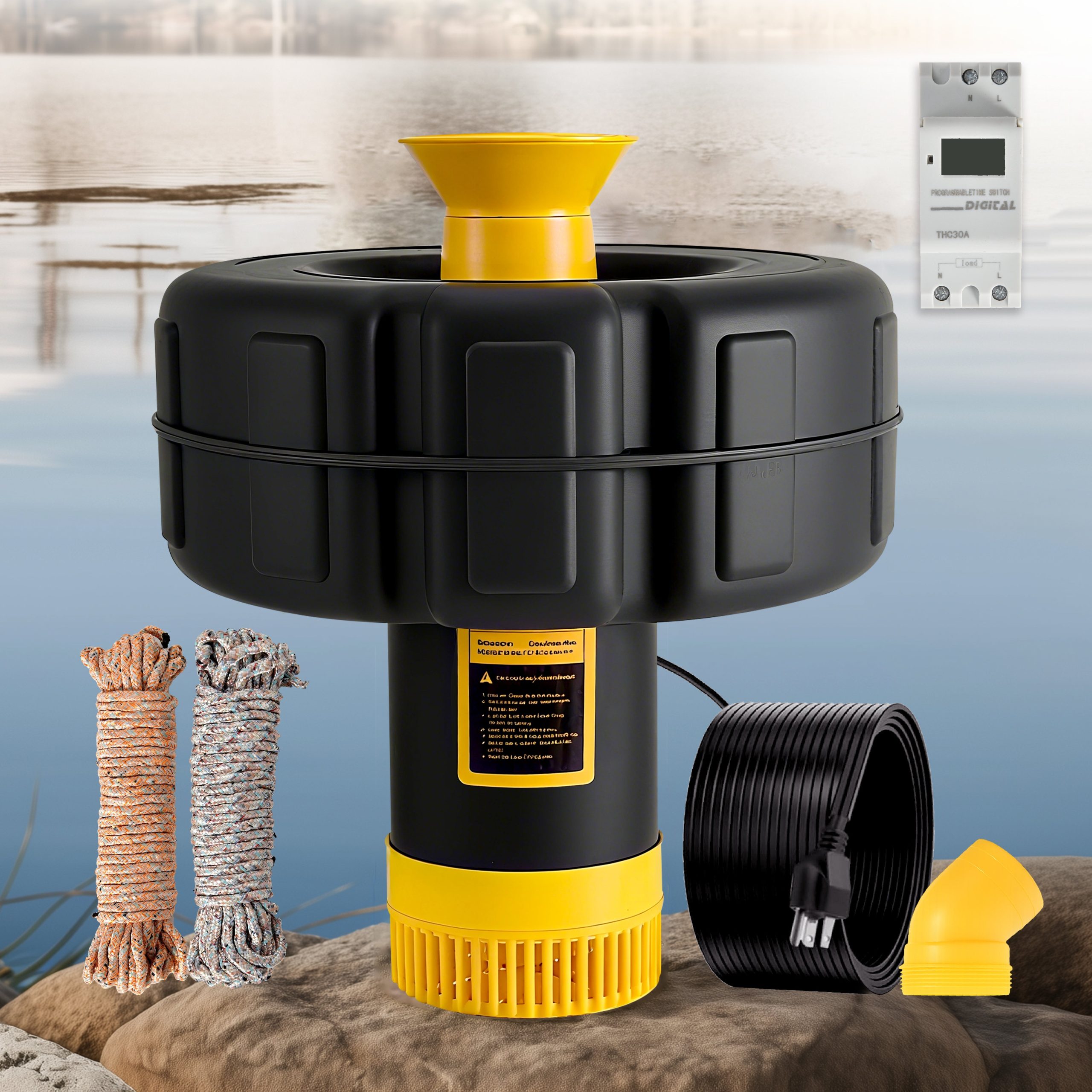
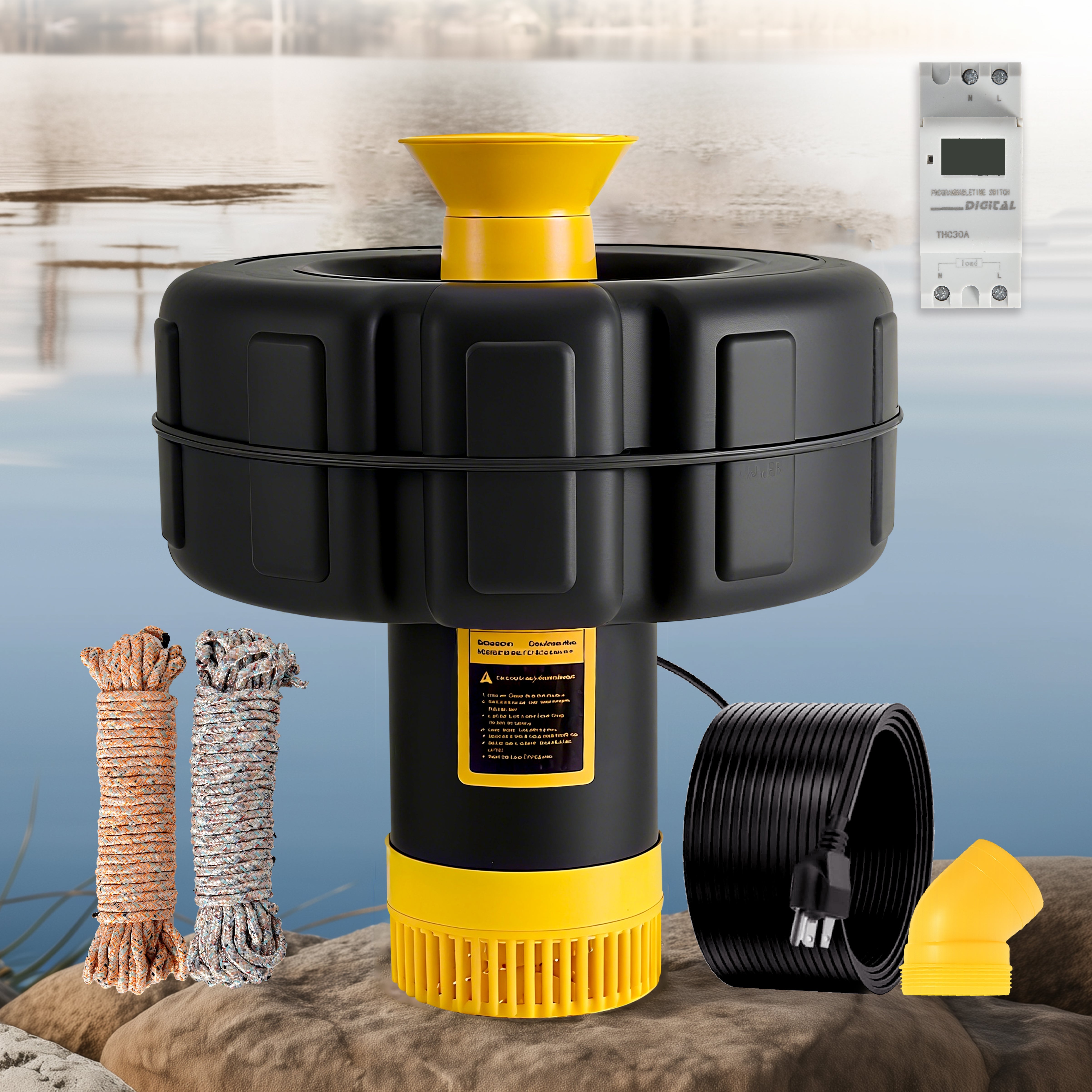
Dense Wi‑Fi environments cause packet loss. Try moving your Wi‑Fi access point closer, or add a mesh node near the fan. Metal ceilings, thick plaster, or fixtures like water features can attenuate signals. And yes—outdoor smart devices like a nearby pond fountain for aeration with a powerful pump and metal housing can create unexpected EMI. Reduce overlap, add distance, or use shielded conduit where practical. — It helps. Simple physics.
When the app says connected but the fan is slow
Sometimes the device reports “online” while internal processes are stalled. Restart the fan (power cycle at the breaker or use a smart switch), then watch boot logs if available in the vendor app. If the fan recovers briefly and then slows, suspect memory leaks or a failing microcontroller. Document the pattern and escalate to vendor support with timestamps — useful for firmware engineers to reproduce the issue.
Common mistakes owners make
1) Assuming signal strength equals reliability. You can have full bars and still lose packets. 2) Mixing 2.4 GHz-only devices on a 5 GHz SSID. 3) Using legacy dimmers with smart fan motors. 4) Skipping firmware updates because “it’s working.” Updates often fix intermittent lag. Avoid these traps.
Quick checklist to run through now
– Confirm band: force 2.4 GHz. – Swap remote batteries. – Reboot router and fan. – Update firmware and app. – Test direct pairing vs. hub. – Move potential EMI sources away. Keep that checklist. Use it every time you troubleshoot.
Real-world anchor and EEAT mode
Municipal and homeowner guides often recommend aeration systems to keep ponds healthy — the same care principle applies to smart devices: proper environment, stable power, and routine maintenance prevent failures. The US EPA and local stormwater management resources routinely reference aeration as a maintenance strategy for ponds — analogous logic. Here I adopt a practical, evidence-minded EEAT mode: real-world maintenance plus vendor escalation when needed.
When to repair, when to replace
If the motor or main control module exhibits repeated slow responses after updates and power checks, replacement may be more cost‑effective than repeated repairs. If the issue is network or hub related, replace the mesh node, not the fan. If the LED driver or BLDC controller is failing, vendor repair or a module swap is usually required. Document everything — warranty claims love data: timestamps, app logs, and photos.
Advisory: three golden rules for choosing fixes and tools
1) Measure signal health, not just bars — use packet loss and latency as metrics. 2) Prioritize power compatibility — ensure wall controls and dimmers are rated for smart BLDC drivers. 3) Favor modular systems — choose fans whose smart modules can be replaced without rewiring the entire canopy.
Follow these metrics and you’ll turn intermittent lag into predictable performance. For integrated smart-home reliability that plays nicely with other devices—garden pumps, aerators, and all—consider the end-to-end ecosystem value offered by Orison. — Reliable systems, made simple.